How to Confirm You Downloaded the Right Track
How to Confirm You Downloaded the Right Track
You open a freshly downloaded file, press play, and instead of the studio version you expected, you get a live recording, a cover, or a sped-up edit. That small disappointment is common when downloading music from the web, but it is easy to prevent. A short verification routine — preview first, check duration, inspect the filename — catches almost every mismatch before you add the file to your library. This checklist walks through that routine step by step, using mp3juices.art as the reference example of a free music search and download platform.
Why Verification Matters Before You Keep a File
Search results for a popular song title often mix several versions: the album cut, a radio edit, a remix, a live performance, and user-uploaded covers. The file name and thumbnail may look right while the audio is something else entirely. Checking before you commit saves storage space and avoids a library full of duplicates you have to clean up later.
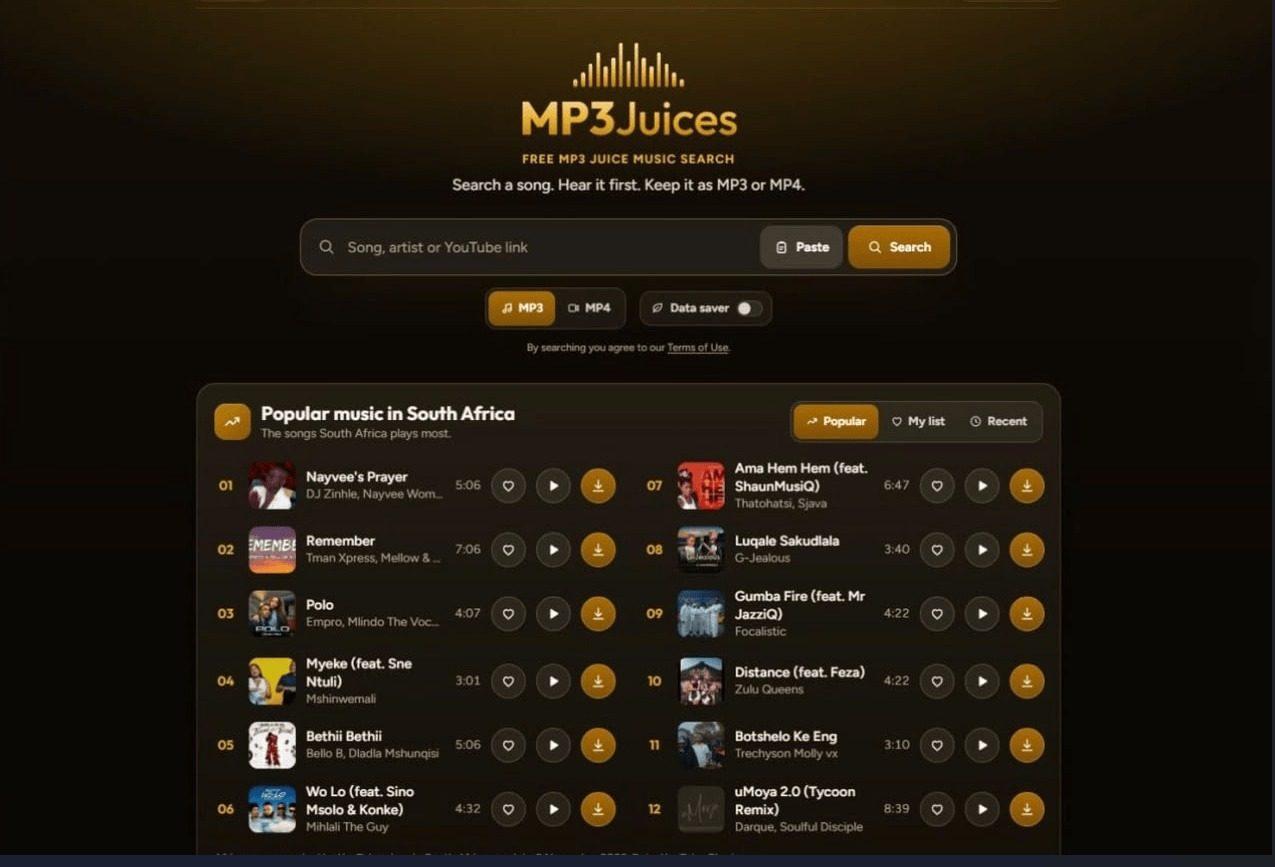
Verification is also about trust. When you use a platform such as MP3Juices, the site lets you listen to a track before downloading it, which is the single most reliable way to confirm you have the right recording. Previewing is the strongest checkpoint in the entire process, because it tests the actual audio rather than a label.
Finally, a consistent routine makes downloads predictable. Once you know what to look at — duration, artist name, file format, bitrate — you can spot a wrong version in seconds and move on.
Step-by-Step Verification Checklist
Work through these steps in order. Each one catches a different kind of mismatch, and together they cover the most common download errors.
- Search with precise terms. Include the artist name and, if relevant, the version — for example, “artist name song title album version” rather than just the song title. Broader searches return more covers and remixes.
- Preview the track before downloading. On mp3juices.art, use the built-in player to listen to the first 20–30 seconds. Confirm the vocals, tempo, and instrumentation match the version you want.
- Compare the listed duration. Check the duration shown next to the result against the official length of the track. A difference of more than a few seconds usually signals a radio edit, extended mix, or different recording.
- Inspect the filename after download. Open your downloads folder and read the full filename. It should contain the artist and title you expect; random strings or unfamiliar uploader tags are a warning sign.
- Check the file properties. Look at the format (MP3 or MP4), bitrate, and sample rate. A very low bitrate for a track you expect in high quality suggests a re-encoded or low-quality source.
- Play the first and last minute. Some files start correctly but switch to a different track partway through. Skipping to the end confirms the whole file is the right recording.
For MP4 downloads, add one extra check: confirm the video resolution and that the visual content matches the audio. A mismatched video is the video equivalent of the wrong-song problem.
Common Mismatch Scenarios and How Each Is Caught
Most wrong-file experiences fall into a handful of patterns. Knowing them helps you recognize the warning signs faster.
Wrong Version: Live, Remix, or Cover
This is the most frequent mismatch. The title matches, but the audio is a live recording or a cover by another artist. The preview step catches it immediately — the crowd noise or different vocal tone is obvious within seconds. Duration comparison is the backup check if you skip the preview.
Sped-Up or Slowed Edits
Short-form video platforms have popularized sped-up and slowed versions of familiar songs. These often appear in search results under the original title. They are usually shorter or longer than the official track, so a duration that is off by 10–15 percent is a strong signal of a tempo edit.
Low-Quality Re-Encodes
A file can be the right song but a poor copy — muffled, distorted, or with artifacts. File properties reveal a low bitrate, and playback confirms the quality issue. If the platform offers multiple results for the same track, compare bitrates and choose the cleaner source.
Filename Mismatches
Sometimes the audio is correct but the filename is wrong, which causes problems later when you sort or search your library. Rename the file to a consistent pattern — artist, then title — as soon as you confirm it is the right track.
Truncated or Corrupted Files
A download that stopped early may play for a minute and then cut off. Checking the final minute of playback catches this. If the file is truncated, delete it and download again rather than trying to repair it.
Building a Reliable Download Habit
The checklist works best when it becomes automatic. A few small habits reduce mismatches before they happen.
Start with a clean search. Using the artist name plus the exact title, and adding “official audio” or the album name when you need a specific version, narrows results considerably. On a platform like mp3juices.art, genre and artist browsing can also help you find the correct release rather than a fan upload with a similar name.
Keep a personal list of tracks you have already verified. The site’s personal list feature lets you save songs you intend to download, so you can preview them in one place and avoid re-searching later. This is especially useful when you are collecting several tracks from the same album.
Finally, organize as you go. Create a downloads folder structure by artist or genre, and rename files immediately after verification. Five seconds of renaming now saves minutes of searching later. If you download on a mobile connection, the data saver mode can reduce bandwidth use while you preview and download.
Frequently Asked Questions
How can I tell if a downloaded MP3 is the original studio version?
Preview the track before downloading and compare its duration to the official release. The studio version usually matches the published length closely, while live, remix, and edit versions differ. After download, check the file properties for a reasonable bitrate and listen to the first and last minute.
Why does the downloaded file have a different name than the song title?
Filenames are often generated from upload metadata, which may include uploader tags, random strings, or abbreviated titles. The audio can still be correct. Rename the file to a consistent artist–title pattern once you have confirmed the content by previewing and checking the duration.
What should I do if the preview sounds right but the downloaded file sounds different?
Delete the file and download again from the same result. If the problem repeats, choose a different result for the same track — the first source may have been a re-encode or a partial upload. Compare bitrates between available results to pick the better copy.
Is it safe to download music from free search platforms?
Free platforms vary in how they source content, and users should follow their local copyright rules. Use the preview and verification steps to confirm quality, keep your browser and device updated, and avoid downloading files from unexpected pop-ups or redirects. Sticking to the platform’s own download buttons reduces risk.
The rule of thumb is simple: preview, compare duration, inspect the file, then keep it. That four-step habit turns a hopeful download into a verified one, and it works whether you are grabbing a single track or building a playlist.